SAM Broadcaster PRO is a long-established radio automation and live broadcasting program for Windows. It manages a music library, plays from a queue through two decks, adds your microphone and sends the result to your station through a built-in encoder. This guide covers installing it, loading music, setting up the Icecast encoder and going live.
Before you start. Before you start. SAM Broadcaster PRO is Windows software and does not run on a Mac. It offers a 14-day free trial, after which a paid licence is needed, with one registration key per licence. Spacial also sells a separate cloud service called SAM Broadcaster Cloud. This guide is for the PRO software that you install on your own computer. It plays from your computer, so keep the computer on and connected while you broadcast.
Radio automation and live broadcasting software for Windows, with a media library, queue, decks and built-in encoders. A paid licence is needed after the trial.
Where to find your connection details
Every program on this page needs the same five details to reach your station: a server address, a port, a username, a password and a mount point. You copy them from your control panel. It takes about a minute, and you only need to do it once for each program.
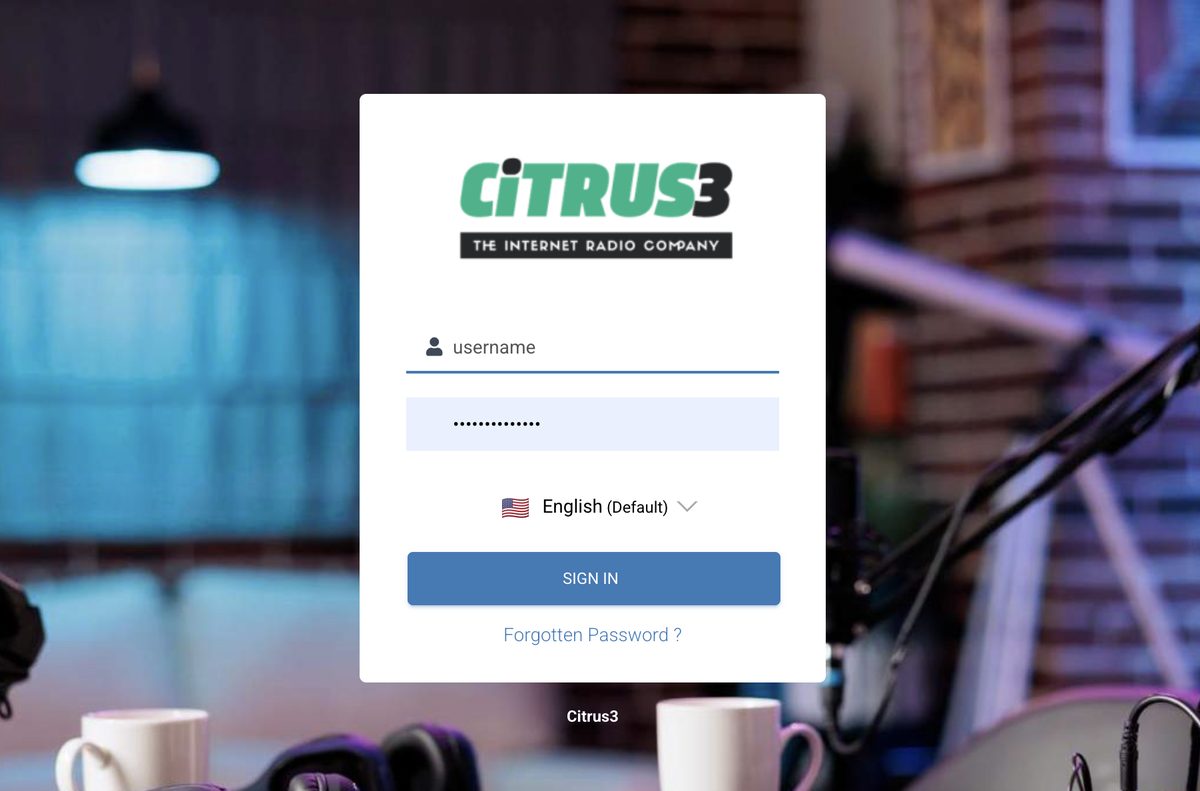
1. Log in to your control panel
Use the control panel link and the username and password from your welcome email.
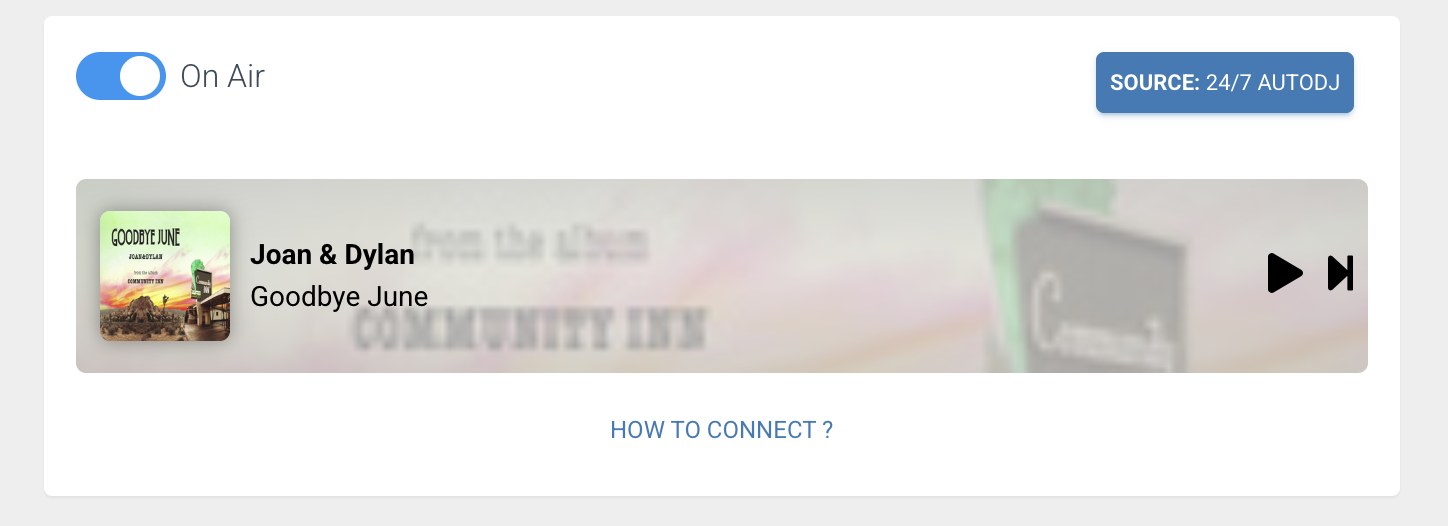
2. Go to the dashboard and click How to connect
After you sign in you arrive at the main dashboard. Next to the preview player you will see a blue link called How to connect. Click it.
3. Copy your five details
A window opens with your connection details. Keep it open while you set up your software.
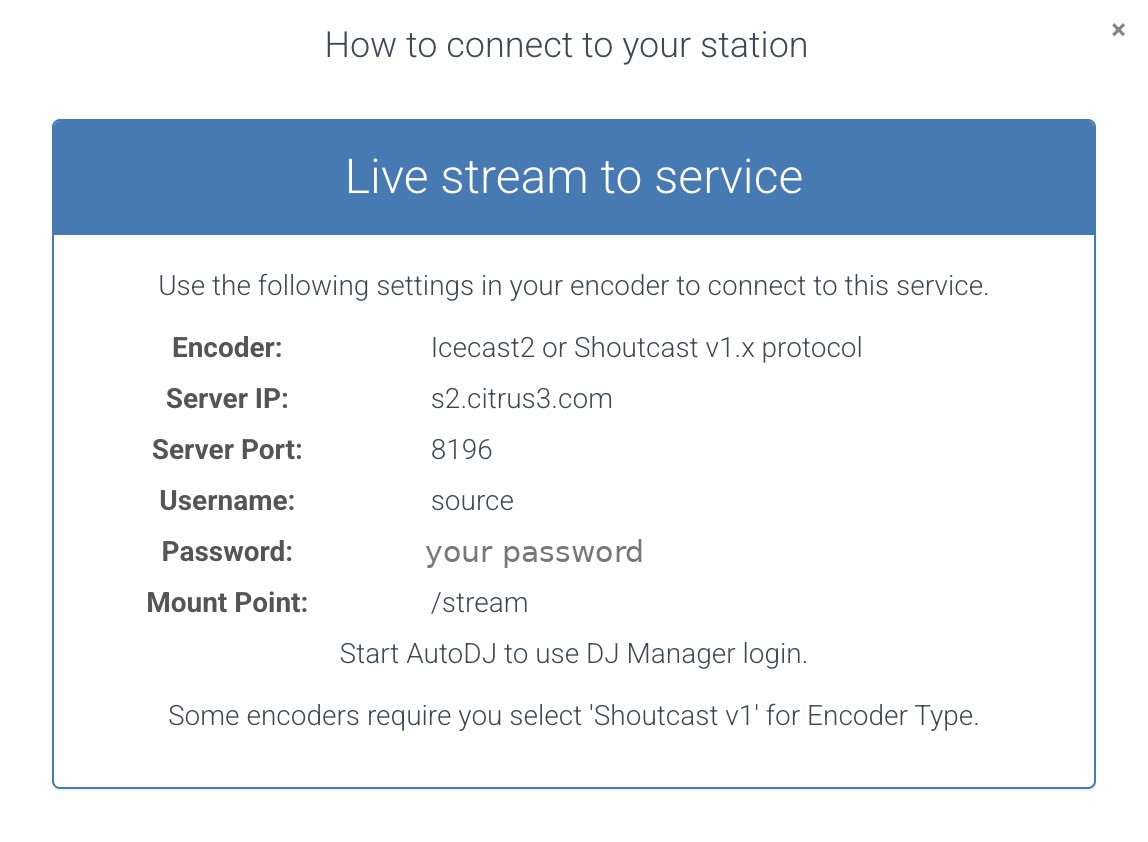
| The window shows | What it is, and what your software may call it |
|---|---|
| Server IP | Where your station lives. In your software this may be called Address, Host, Hostname, Server or Server URL. Enter the address only, with no http://. |
| Server Port | The port number. Your software calls it Port. |
| Username | Called Username, User, Login or Encoder username. It is often source, but use the one shown on your dashboard. |
| Password | Your source password for broadcasting. Your software may call it Password or Encoder password. It is not the password you use to log in to the control panel. |
| Mount Point | The stream path. Your software may call it Mount, Mountpoint or Stream path. Copy it exactly, including the slash at the start, for example /stream. |
- The window says Icecast2 or Shoutcast v1.x. Always choose Icecast (or Icecast 2) as the type in your software.
- It also says Start AutoDJ to use DJ Manager login. That only matters if you use separate DJ accounts. Your station’s AutoDJ must be running for those logins to work.
- Copy and paste each value instead of typing it, and keep your password private.
- When you connect, your live broadcast interrupts your AutoDJ programming. When you disconnect, the AutoDJ resumes by itself.
Steps
- Go to spacial.com and choose SAM Broadcaster PRO, the Windows software. Download the installer and start the free trial, or buy a licence.
- Run the installer and follow the wizard. The default install folder is fine. If it asks you to choose a database, choose Firebird.
- Start SAM Broadcaster. When prompted, enter the registration key you received, or start the trial.
- Log in to your control panel. On the dashboard, click the How to connect link next to the preview player and keep that page open. You will copy five details from it: the server IP, port, username, password and mount point. The pictures at the top of this page show where to look.
- Add your music. Select Desktop A on the toolbar, then in the Playlist window choose Tracks. Click the + button and select your music files. The arrow beside it lets you add a whole folder or import a playlist in M3U, PLS or ASX format. You can also drag files in from Windows Explorer.
- Build your queue. Drag tracks from the track list into the Queue window. Hold Shift or Ctrl to pick several at once. SAM loads the queue into Deck A and Deck B in turn and prepares the next track shortly before the current one ends.
- Check the Air buttons on both decks are switched on (they show blue). If they are off, the deck plays on your computer but nothing reaches the stream.
- Open the Window menu and choose Encoders so the encoder panel is visible.
- In the Encoders panel, click the + icon. Choose MP3 (LAME_ENC) and click OK. The label can differ slightly between versions.
- On the Converter tab, raise the bitrate from the default and choose one within your plan, such as 128 kbps. Set the mode to Stereo and the sample rate to 44100.
- Open the Server Details tab. Set the server type to IceCast, and the version to Icecast 2.
- Enter your server IP address in Server IP and your Port.
- Enter your username and password. If your version has a username field, use it. If it has only a password field, try
username:passwordin that field, with the two parts joined by a colon. - Enter your Mount point exactly as shown in How to connect, beginning with a slash.
- Open the Station Details tab and enter your station name, genre, website and description. Listeners and directories see these.
- Click OK to save the encoder.
- Start a track playing on a deck. SAM needs audio playing before it can connect.
- Select your encoder in the Encoders panel and press its Play button. The status moves from connecting to encoding. Your live broadcast is now interrupting your AutoDJ.
- To finish, press Stop on the encoder. It disconnects and your AutoDJ resumes automatically.
Settings at a glance
| Setting | What to enter |
|---|---|
| Encoder type | MP3 (LAME_ENC) |
| Bitrate | Up to your plan: 128, 256 or 320 kbps |
| Mode / sample rate | Stereo / 44100 Hz |
| Server type | IceCast, version Icecast 2 |
| Server IP / Port | Your server IP and port from How to connect |
| Username / password | Your username and source password |
| Mount point | Your mount point, starting with a slash |
Using your microphone
SAM controls your voice through the Voice FX window.
- Open the Voice FX window.
- Make sure the mixer output is routed to the Encoders, and that the recording source is your sound card. Choose the correct device if SAM has picked the wrong one.
- Switch on the Air button under Mic Volume.
- Turn the microphone on, and use Lock talk to keep it open while you speak.
- Lower the Music Volume control to bring the music down under your voice. Use this control for fades, not the deck’s own volume slider.
- When you finish, raise the music back up, then unlock and switch off the microphone.
SAM also has keyboard shortcuts for talking and for starting and stopping tracks. Look in the program’s help for the list that matches your version, and practise them before a live show.
How the decks and queue work
SAM plays through two decks that alternate. Press play on the queue and it loads a track into the empty deck. A few seconds before that track ends it loads the next one into the other deck, and they alternate until the queue is empty. Each queued track shows an estimated time when it will go to air. SAM also has automation modes that decide how the next track is chosen: fully automatic, from your queue only, or manual. Choose the mode that suits the show.
Keep it running
While SAM is connected it replaces your AutoDJ, so keep the queue full to avoid silence. If you do not want SAM to take over your station any more, stop the encoder, and your AutoDJ returns.
Stream delay
A stream always runs behind the studio, by several seconds or more. To test, listen to your radio page on a different device, not the computer running SAM, and allow a little time for changes to be heard.
Check that it is working
Open your radio page, or press play on the preview player on your dashboard, and listen. Expect a delay of a few seconds between what you do and what you hear, because every internet stream has some. For the most honest test, listen on a phone over mobile data. If you can hear your show, you are live, and your AutoDJ is paused until you disconnect.
Troubleshooting
- SAM will not connect. Check the server type is IceCast 2, the mount point starts with a slash, and the port and password match How to connect. The status will show an error if a detail is wrong.
- There is no username field. Older versions of SAM have only a password field. Try
username:passwordin it, and if that fails, update SAM Broadcaster to a newer version. - I get a message that there is no audio. Start a track playing on a deck before you press the encoder’s Play button.
- Listeners hear nothing, but the deck is playing. Check the Air button is on for the deck, and the mixer is routed to the encoders in Voice FX.
- Listeners hear music but not me. Open Voice FX, check the microphone Air button, switch the mic on and lock talk, and check the recording source is your sound card.
- It will not connect. Open How to connect again and compare every field character by character, or copy and paste each one. The server must be entered as an address or IP only, with no
http://, and a mount point must begin with a slash. - It says the password is wrong. Use the source password shown in How to connect, not your control panel login password.
- It connects but listeners hear nothing. The program is sending silence. Check that the right input is selected, that the level meters move, and that nothing is muted.
- The audio stutters or drops. Your upload connection is the usual cause. Close video calls, cloud backups and other uploads, use a cable instead of Wi-Fi, and try a lower bitrate.
- The audio sounds too fast, slow or distorted. Make the sample rate the same everywhere (44100 Hz is the safe choice) and keep your levels out of the red.
- My AutoDJ did not come back. Make sure the program has fully disconnected, then wait a short while. If the station is still silent, email support@citrus3.zendesk.com.
- SAM Broadcaster PRO is for Windows only.
- Keep your registration key and connection details private.
- Use the Icecast server type with a mount point, as shown above.
When you stop the encoder, your AutoDJ takes over again. You can reconnect any time you want to go live.
Need a hand?
We typically reply within a few hours on weekdays (9:00 AM to 5:00 PM UK time).
Contact usNext guide: Broadcast live with Rocket Broadcaster