VirtualDJ is popular DJ mixing software for Windows and Mac. It can send your live mix directly to an Icecast server, so you can mix on decks and have listeners hear it on your station. This guide covers downloading, licensing, connecting and going live.
Before you start. Licence. VirtualDJ’s free home edition is for non-commercial use. According to VirtualDJ’s manual, broadcasting to a radio server needs a paid Pro licence, either Pro Infinity or Pro Monthly. Check the current options on virtualdj.com before you buy.
Popular DJ mixing software for Windows and Mac. The home edition is free for non-commercial use; broadcasting to a radio server needs a paid Pro licence.
Where to find your connection details
Every program on this page needs the same five details to reach your station: a server address, a port, a username, a password and a mount point. You copy them from your control panel. It takes about a minute, and you only need to do it once for each program.
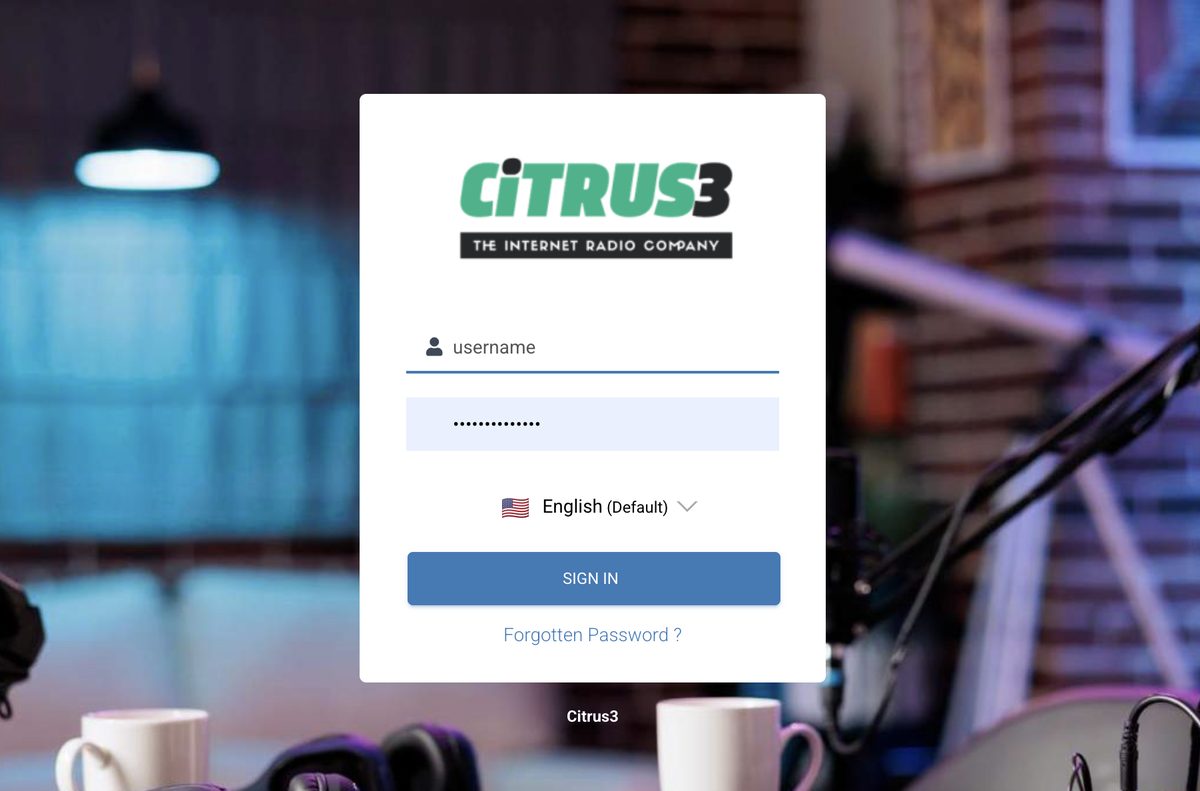
1. Log in to your control panel
Use the control panel link and the username and password from your welcome email.
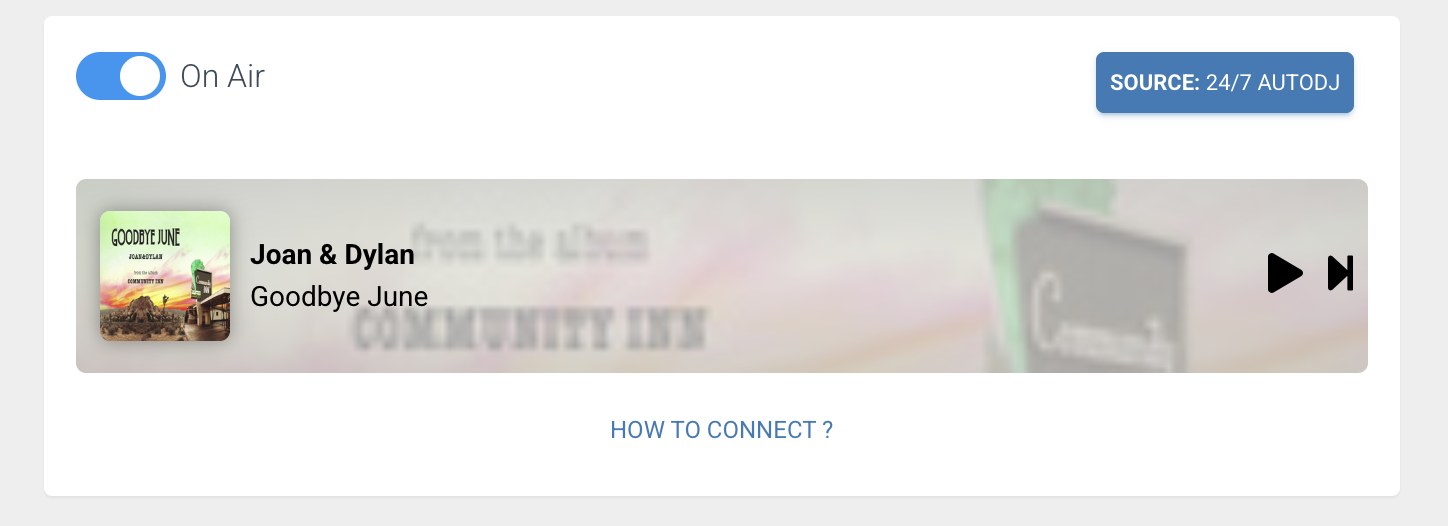
2. Go to the dashboard and click How to connect
After you sign in you arrive at the main dashboard. Next to the preview player you will see a blue link called How to connect. Click it.
3. Copy your five details
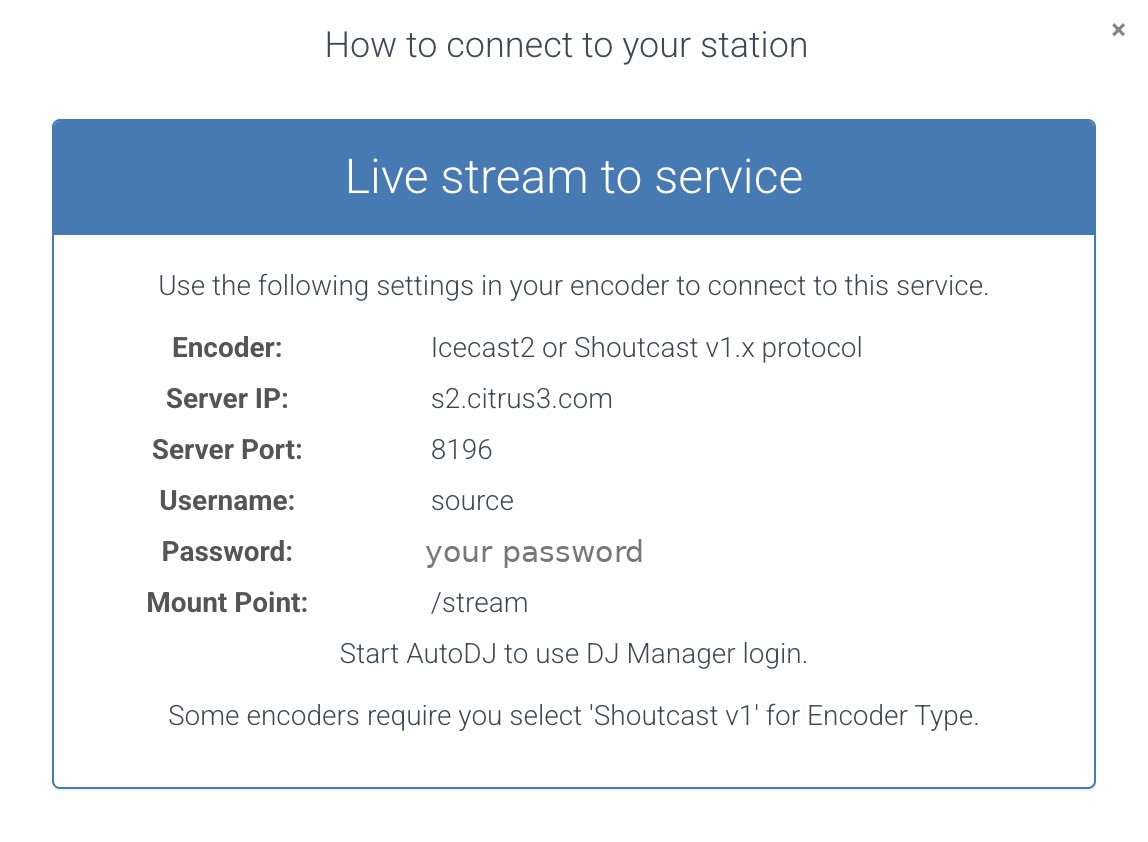
A window opens with your connection details. Keep it open while you set up your software.
| The window shows | What it is, and what your software may call it |
|---|---|
| Server IP | Where your station lives. In your software this may be called Address, Host, Hostname, Server or Server URL. Enter the address only, with no http://. |
| Server Port | The port number. Your software calls it Port. |
| Username | Called Username, User, Login or Encoder username. It is often source, but use the one shown on your dashboard. |
| Password | Your source password for broadcasting. Your software may call it Password or Encoder password. It is not the password you use to log in to the control panel. |
| Mount Point | The stream path. Your software may call it Mount, Mountpoint or Stream path. Copy it exactly, including the slash at the start, for example /stream. |
- The window says Icecast2 or Shoutcast v1.x. Always choose Icecast (or Icecast 2) as the type in your software.
- It also says Start AutoDJ to use DJ Manager login. That only matters if you use separate DJ accounts. Your station’s AutoDJ must be running for those logins to work.
- Copy and paste each value instead of typing it, and keep your password private.
- When you connect, your live broadcast interrupts your AutoDJ programming. When you disconnect, the AutoDJ resumes by itself.
Steps
- Go to virtualdj.com and download VirtualDJ for Windows or Mac.
- Run the installer and follow the wizard, accepting the licence terms and choosing the standard installation. On a Mac, drag the app into Applications.
- Open VirtualDJ. You can sign in with a virtualdj.com account, which is recommended for managing your licence.
- Open Settings using the button at the top right, go to the Licenses tab, and check your Pro licence is active. If you signed in, it appears under current licences. Otherwise enter your keycode.
- Log in to your control panel. On the dashboard, click the How to connect link next to the preview player and keep that page open. You will copy five details from it: the server IP, port, username, password and mount point. The pictures at the top of this page show where to look.
- In Settings, choose Broadcast from the menu on the left.
- Choose Radio Server from the broadcast options.
- Set the protocol to IceCast.
- If the settings offer an encoding choice, pick MP3 and a bitrate within your plan, such as 128 kbps.
- Enter your server IP in Server URL, and your port in Server Port.
- Enter your mount point in Mount Address, exactly as shown and starting with a slash.
- Enter your username in Login and your source password in Password.
- Click the Save icon to keep the settings.
- Load a track onto a deck, press play, and press Start Broadcast. Your live mix now interrupts your AutoDJ programming.
- To finish, press the same button to stop the broadcast. Your AutoDJ resumes automatically.
Settings at a glance
| Setting | What to enter |
|---|---|
| Broadcast type | Radio Server |
| Protocol | IceCast |
| Server URL | Your server IP from How to connect |
| Server Port | Your port |
| Mount Address | Your mount point, starting with a slash |
| Login / Password | Your username and source password |
| Format / bitrate | MP3, up to your plan: 128, 256 or 320 kbps |
Using your microphone
Connect your microphone, enable it in VirtualDJ’s audio setup and use the microphone controls in the mixer to speak over your mix. VirtualDJ sends your main output to the stream, so do a short test and ask a friend, or listen on your phone, to confirm your voice is heard at the right level.
A note on other broadcast types
VirtualDJ’s Broadcast tab also offers options for video, audio links and podcasts. For your Citrus3 station, you want Radio Server.
Check that it is working
Open your radio page, or press play on the preview player on your dashboard, and listen. Expect a delay of a few seconds between what you do and what you hear, because every internet stream has some. For the most honest test, listen on a phone over mobile data. If you can hear your show, you are live, and your AutoDJ is paused until you disconnect.
Troubleshooting
- The Start Broadcast button is blocked. Broadcasting to a radio server needs a Pro licence. Check the Licenses tab in Settings.
- VirtualDJ will not connect. Check each field, especially that the mount point starts with a slash and that the protocol is IceCast.
- It will not connect. Open How to connect again and compare every field character by character, or copy and paste each one. The server must be entered as an address or IP only, with no
http://, and a mount point must begin with a slash. - It says the password is wrong. Use the source password shown in How to connect, not your control panel login password.
- It connects but listeners hear nothing. The program is sending silence. Check that the right input is selected, that the level meters move, and that nothing is muted.
- The audio stutters or drops. Your upload connection is the usual cause. Close video calls, cloud backups and other uploads, use a cable instead of Wi-Fi, and try a lower bitrate.
- The audio sounds too fast, slow or distorted. Make the sample rate the same everywhere (44100 Hz is the safe choice) and keep your levels out of the red.
- My AutoDJ did not come back. Make sure the program has fully disconnected, then wait a short while. If the station is still silent, email support@citrus3.zendesk.com.
- Use the microphone input in VirtualDJ if you want to speak over your mix.
- If it will not connect, compare every field with How to connect.
When you stop broadcasting, your AutoDJ continues the programme.
Need a hand?
We typically reply within a few hours on weekdays (9:00 AM to 5:00 PM UK time).
Contact usNext guide: Broadcast live with SAM Broadcaster