Winamp plays your music, and a free encoder plugin called AltaCast sends it to your station. AltaCast descends from the Oddcast and Edcast encoders and connects to Icecast servers, which is what Citrus3 uses. This guide covers installing both, entering your Icecast connection details and going live.
Before you start. This setup is for Windows. Mac users should use LadioCast, BUTT or Mixxx instead. Citrus3 servers use Icecast, so choose the Icecast server type in the plugin. Do not use the older “Nullsoft SHOUTcast Source DSP” plugin, which is made for SHOUTcast servers.
Classic Windows music player. You add the free AltaCast plugin to send its audio to your station.
Where to find your connection details
Every program on this page needs the same five details to reach your station: a server address, a port, a username, a password and a mount point. You copy them from your control panel. It takes about a minute, and you only need to do it once for each program.
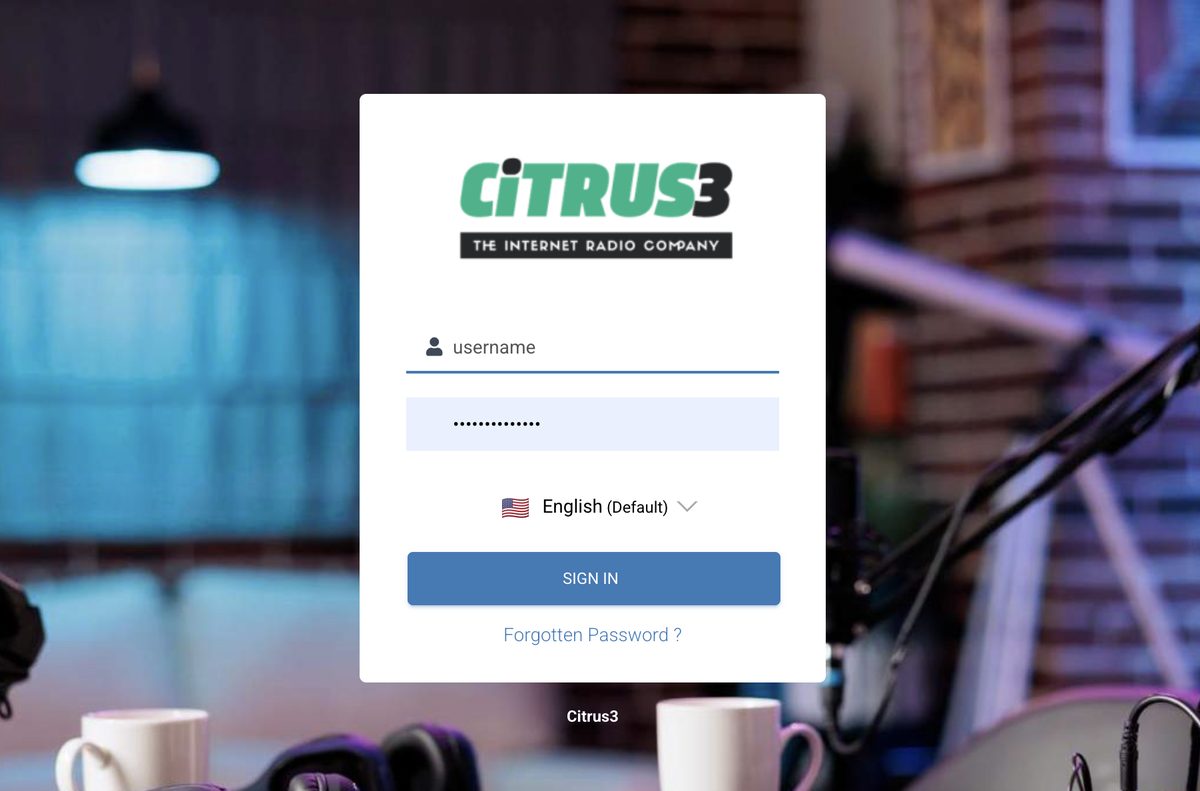
1. Log in to your control panel
Use the control panel link and the username and password from your welcome email.
2. Go to the dashboard and click How to connect
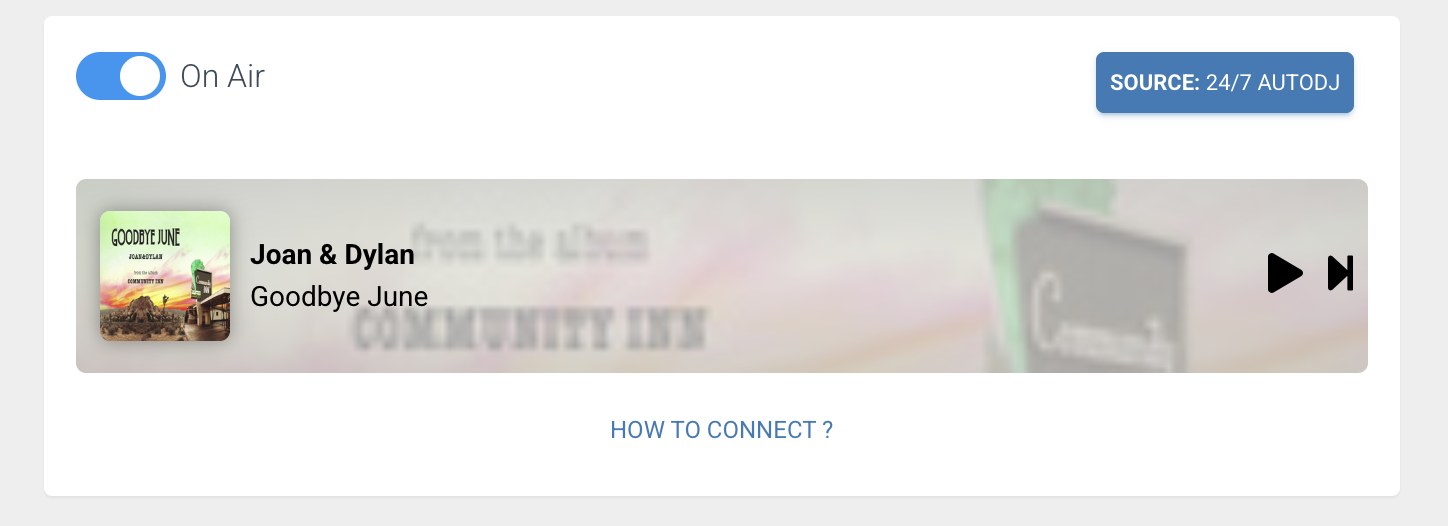
After you sign in you arrive at the main dashboard. Next to the preview player you will see a blue link called How to connect. Click it.
3. Copy your five details
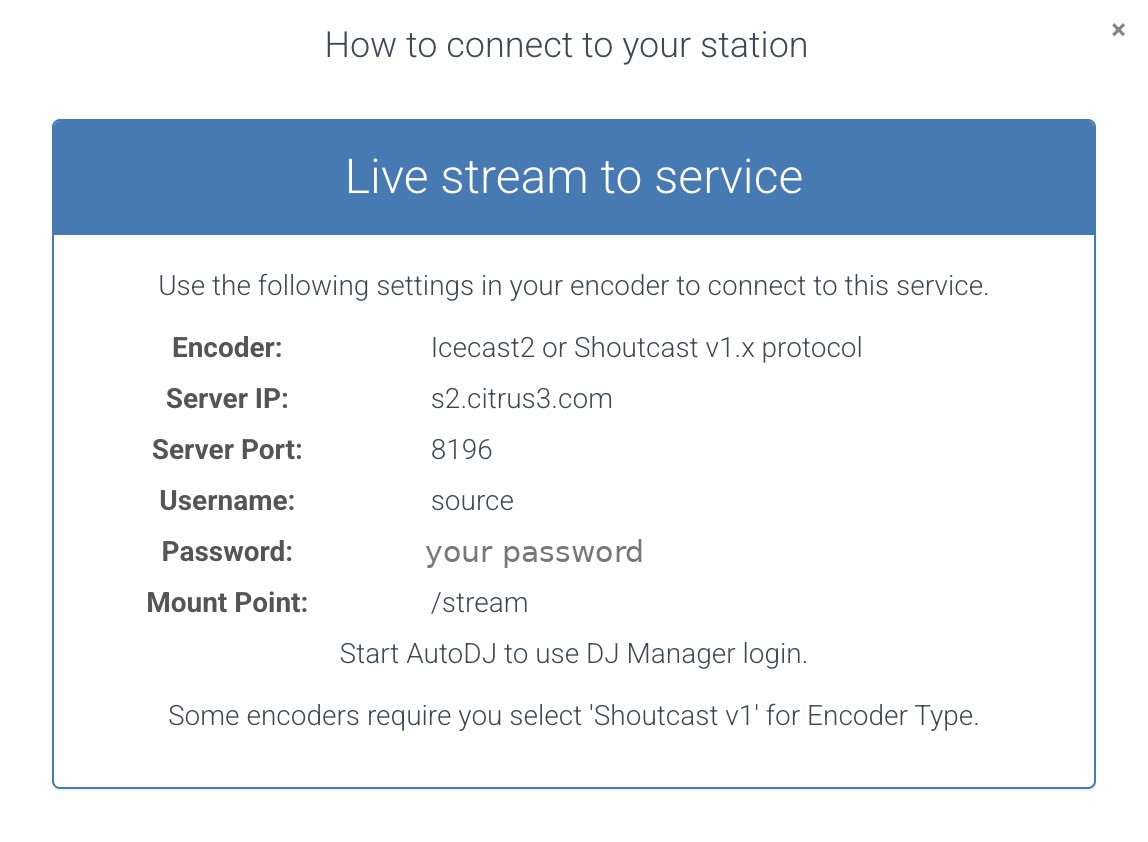
A window opens with your connection details. Keep it open while you set up your software.
| The window shows | What it is, and what your software may call it |
|---|---|
| Server IP | Where your station lives. In your software this may be called Address, Host, Hostname, Server or Server URL. Enter the address only, with no http://. |
| Server Port | The port number. Your software calls it Port. |
| Username | Called Username, User, Login or Encoder username. It is often source, but use the one shown on your dashboard. |
| Password | Your source password for broadcasting. Your software may call it Password or Encoder password. It is not the password you use to log in to the control panel. |
| Mount Point | The stream path. Your software may call it Mount, Mountpoint or Stream path. Copy it exactly, including the slash at the start, for example /stream. |
- The window says Icecast2 or Shoutcast v1.x. Always choose Icecast (or Icecast 2) as the type in your software.
- It also says Start AutoDJ to use DJ Manager login. That only matters if you use separate DJ accounts. Your station’s AutoDJ must be running for those logins to work.
- Copy and paste each value instead of typing it, and keep your password private.
- When you connect, your live broadcast interrupts your AutoDJ programming. When you disconnect, the AutoDJ resumes by itself.
Steps
- Go to winamp.com, download Winamp and run the installer, completing the wizard. If Winamp opens when the installation finishes, close it. Note the folder it was installed in, usually
C:\Program Files (x86)\Winamp. - Go to altacast.com and download the AltaCast plugin for Winamp (the Standalone and DSP edition). Run its installer and point it at the same folder as Winamp.
- AltaCast sends MP3 through an add-on encoder file called
lame_enc.dll. If MP3 is not available in the plugin, download a LAME build that includeslame_enc.dll(builds are hosted on sites such as rarewares.org) and copy that file into your Winamp folder. - Open Winamp and press Ctrl+P to open Preferences. Under Plug-ins, click DSP/Effect and select the AltaCast plugin in the list. The encoder window opens. If the plugin is missing, close Winamp, then reopen it as administrator.
- Log in to your control panel. On the dashboard, click the How to connect link next to the preview player and keep that page open. You will copy five details from it: the server IP, port, username, password and mount point. The pictures at the top of this page show where to look.
- In the plugin window, click Add Encoder. Double-click the new encoder, or right-click it and choose Configure.
- On the settings tab, set the Encoder type to MP3 (LAME), the Samplerate to 44100, Channels to 2 (stereo) and the Bitrate to one your plan allows, such as 128 kbps.
- Set the Server type to Icecast2.
- Enter your server IP address in Server IP (or Host name) and your Port.
- Enter your Encoder password, which is the source password from How to connect. If the window has a username field, enter the username shown there.
- Enter your Mountpoint exactly as shown in How to connect, including the leading slash.
- Optionally, open the YP or station info settings and enter your station name, website and genre. Leave the stream private unless you want public listing. Click OK.
- Tick AutoReconnect, so the encoder reconnects if the connection drops.
- Add music: in Winamp, click the + icon in the media library, choose Add files and select your tracks. Double-click a track to play it.
- Highlight your encoder in the plugin window and click Connect. A number appears in the transfer rate column, which means audio is flowing. Your live broadcast now interrupts your AutoDJ.
- To finish, click Disconnect. Your AutoDJ resumes automatically.
Settings at a glance
| Setting | What to enter |
|---|---|
| Encoder | MP3 (LAME) |
| Samplerate / channels | 44100 Hz / 2 (stereo) |
| Bitrate | Up to your plan: 128, 256 or 320 kbps |
| Server type | Icecast2 |
| Server IP / host name | Your server IP from How to connect |
| Port | Your port |
| Encoder password | Your source password |
| Mountpoint | Your mount point, starting with a slash |
| AutoReconnect | Ticked |
Talking over the music
To add your voice, switch the encoder’s input from Winamp to your microphone. The microphone guide shows how.
Listening to yourself
To check your stream from the same computer, open your radio page in a browser or a different player, such as VLC. Do not open the stream in Winamp itself, because that interrupts your broadcast.
Check that it is working
Open your radio page, or press play on the preview player on your dashboard, and listen. Expect a delay of a few seconds between what you do and what you hear, because every internet stream has some. For the most honest test, listen on a phone over mobile data. If you can hear your show, you are live, and your AutoDJ is paused until you disconnect.
Troubleshooting
- The plugin is missing from the list. Reinstall AltaCast into the same folder as Winamp, then reopen Winamp and check Preferences, Plug-ins, DSP/Effect.
- MP3 is not offered, or it says an encoder is missing. Copy
lame_enc.dllinto your Winamp folder and restart Winamp. - Winamp plays but nothing is sent. Check the encoder shows a transfer rate after you click Connect, and that a track is playing.
- It will not connect. Open How to connect again and compare every field character by character, or copy and paste each one. The server must be entered as an address or IP only, with no
http://, and a mount point must begin with a slash. - It says the password is wrong. Use the source password shown in How to connect, not your control panel login password.
- It connects but listeners hear nothing. The program is sending silence. Check that the right input is selected, that the level meters move, and that nothing is muted.
- The audio stutters or drops. Your upload connection is the usual cause. Close video calls, cloud backups and other uploads, use a cable instead of Wi-Fi, and try a lower bitrate.
- The audio sounds too fast, slow or distorted. Make the sample rate the same everywhere (44100 Hz is the safe choice) and keep your levels out of the red.
- My AutoDJ did not come back. Make sure the program has fully disconnected, then wait a short while. If the station is still silent, email support@citrus3.zendesk.com.
- Always choose Icecast2 as the server type. A Citrus3 station is an Icecast server, so SHOUTcast settings and the SHOUTcast Source DSP are not used.
- AltaCast streams Ogg Vorbis and Ogg FLAC out of the box, but MP3 needs the
lame_enc.dllfile. Use MP3 for the widest compatibility with listeners’ players. - Keep your connection details private.
Once you disconnect, your AutoDJ takes over again automatically. You can reconnect any time you want to go live.
Need a hand?
We typically reply within a few hours on weekdays (9:00 AM to 5:00 PM UK time).
Contact usNext guide: Set up a microphone through Winamp